I love Iterm and I would like to share with you some of the tips I found with this awesome tools.
Make him look pretty
Everyone loved to work with the awesome, fast and powerful tool. But we also want them to look pretty and by customizable. Iterm can be all of them. First thing at the first installation the theme is already pretty good. But if you want to change this theme just take a look at this website. He has a lot of scheme and some of them are really beautiful. Also in your profile settings ⌘ + , you can change the fonts of him. If you don’t like the standard font you can just change it here.
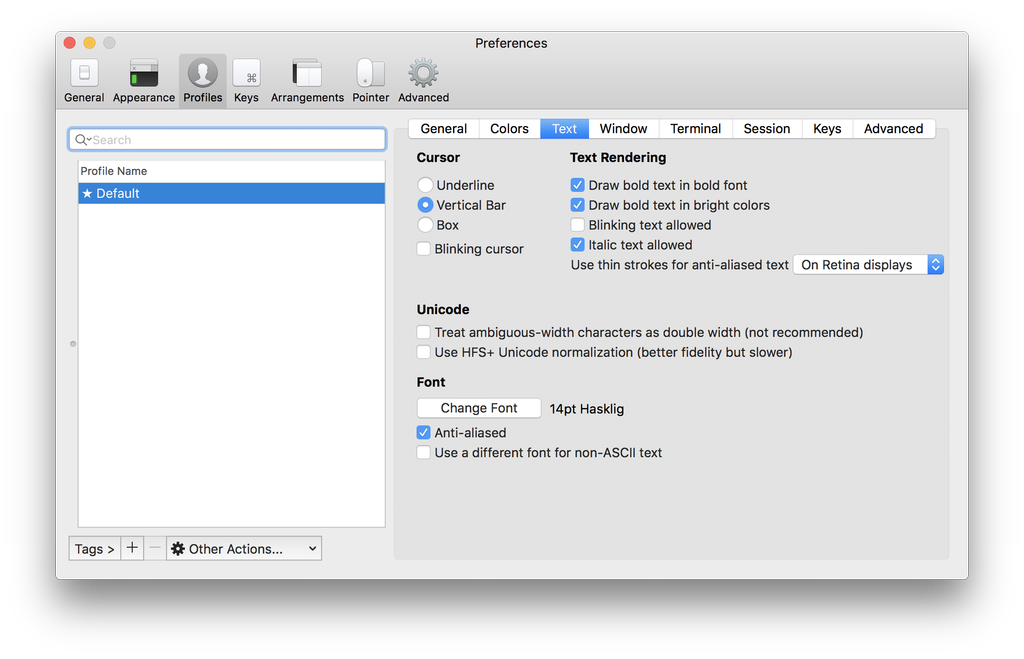
Just click on change font. For me has you can see I use Hasklig.
Make it feel more native
Has a Mac user, we love the shortcut of Mac when it comes to delete a single word, delete a full line, go to the beginning of a line etc. But if you have played with iterm you know them they don’t work. BUT They can ;)
Go in your profile ⌘ + , and click on keys
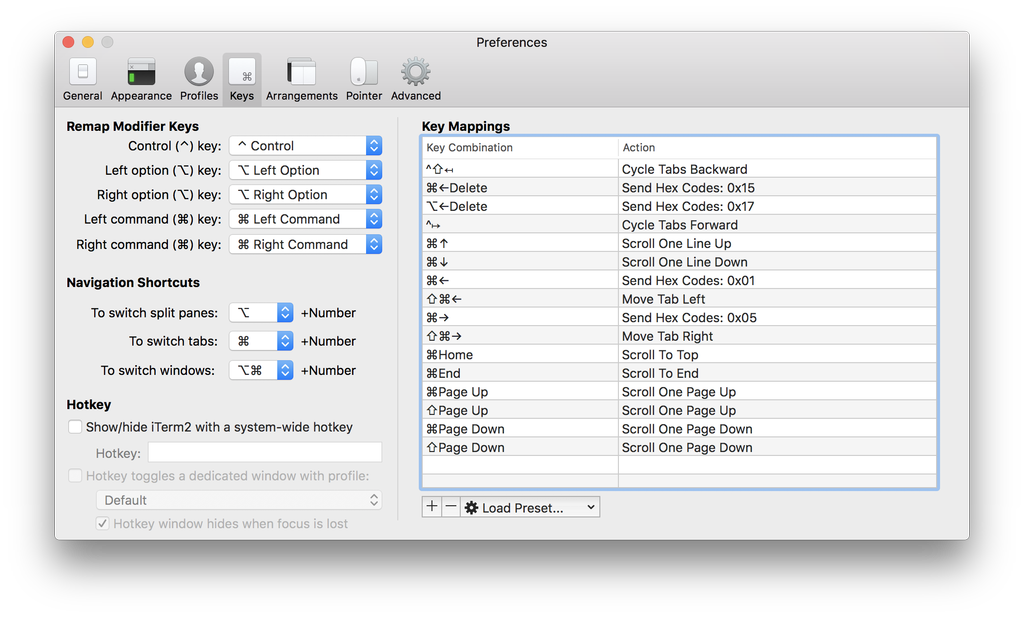
After that in the right where we see Key mappings, we can add these command.
For delete a single word with ⌥ + ⌫
- Action: Send Hex Code 0x17
For delete a full line with ⌘ + ⌫
- Action: Send Hex Code 0x15
For go to the beginning of a line with ⌘ + ←
- Action: Send Hex Code 0x01
For go to the end of a line with ⌘ + →
- Action: Send Hex Code 0x05
Some tips
For opening a new tab like always in Mac you can just ⌘ + t. After that, if you want to travel between them you can ⌘ + number of the panel. Example ⌘ + 2 send me to the second panel.
Also if you want to split screen just hit ⌘ + d that gonna split to the right. If you want to change between split you can here
Add the same command as me. So now I just need to ⌥ + number of the split.
Open him with a good size
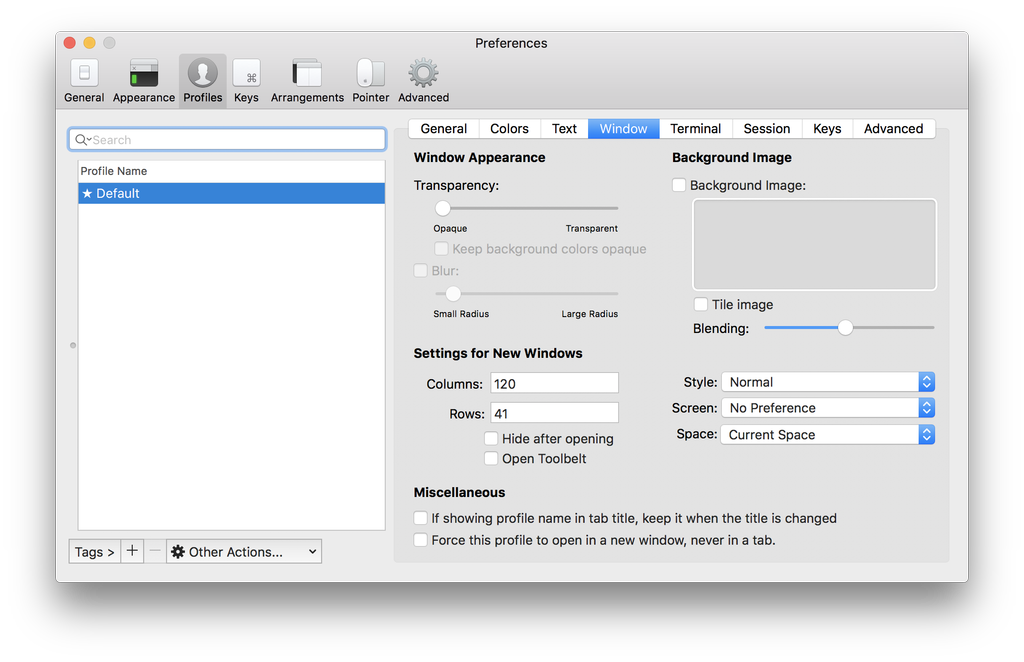
For me, I like Iterm to be with a standard size when I open it. For the change, it just goes in profile again but on the window now. If you want the same size as me.
- Column: 120
- Rows: 41
If you want to open with the split or new tab same directory
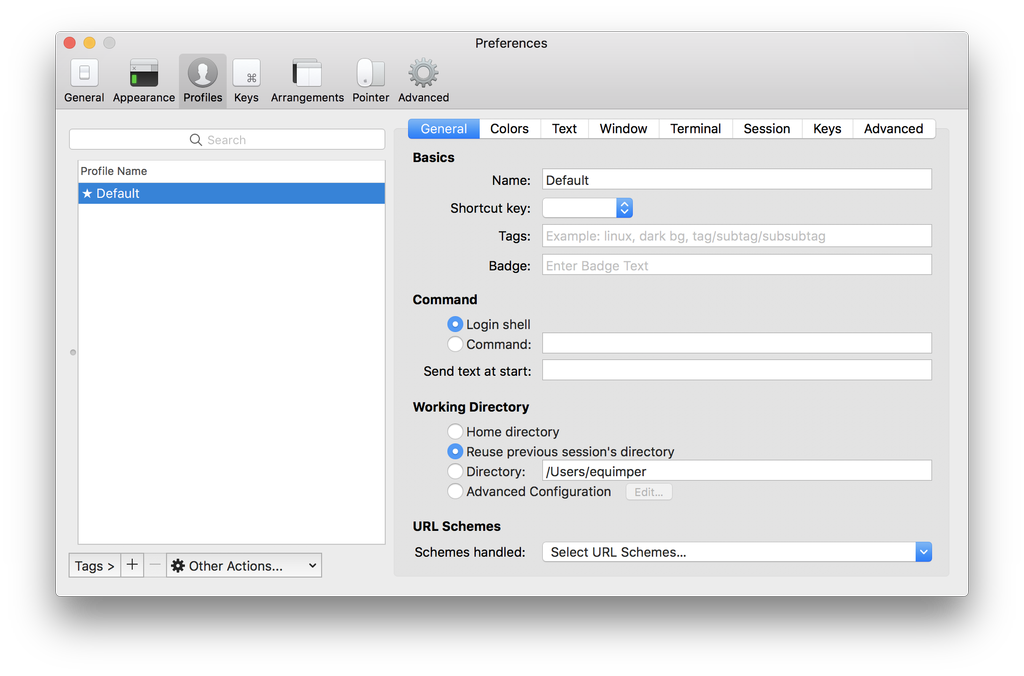
When I code I always finish by open lot of tabs with him. I hate when I need to cd in my directory again. So for that Iterm make it easy for us. You can check on Iterm to make him open in the same directory really easy.
In profile again with the tab general open just check in the working directory section like that
Finish
Hope you have like this little post and find it helpful :)